
How to Change Your Email
Users can change their own email address at any time. Owners can also change email addresses for users in their organization.
Table of Contents
- How to Change Your Email as a User
- How to Change a User’s Email as an Owner
- Frequently Asked Questions (FAQs)
- When Can Support Help?
How to Change Your Email as a User
To change your email yourself:
- Go to Account Settings
- Open the Profile tab
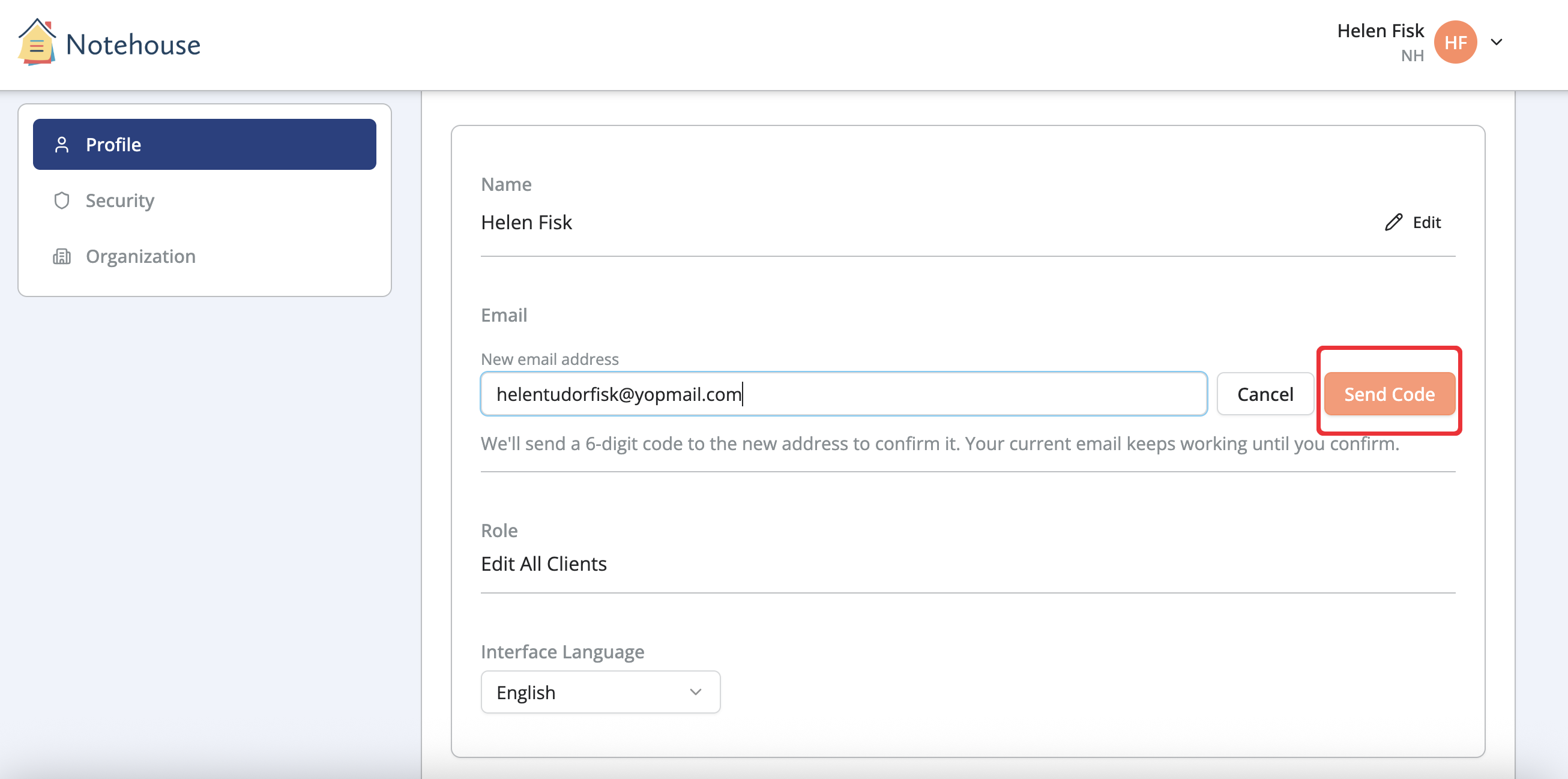
- Click Edit next to your email address
- Enter your new email address
- Confirm that the new email address is correct
- Click Send Code
- Enter the code sent to your email
- Once the code is entered, your new email address is confirmed.
You can log in to Notehouse with your new email going forward.
How to Change a User’s Email as an Owner
To change a user’s email address as an Account Owner:
- Go to Account Settings
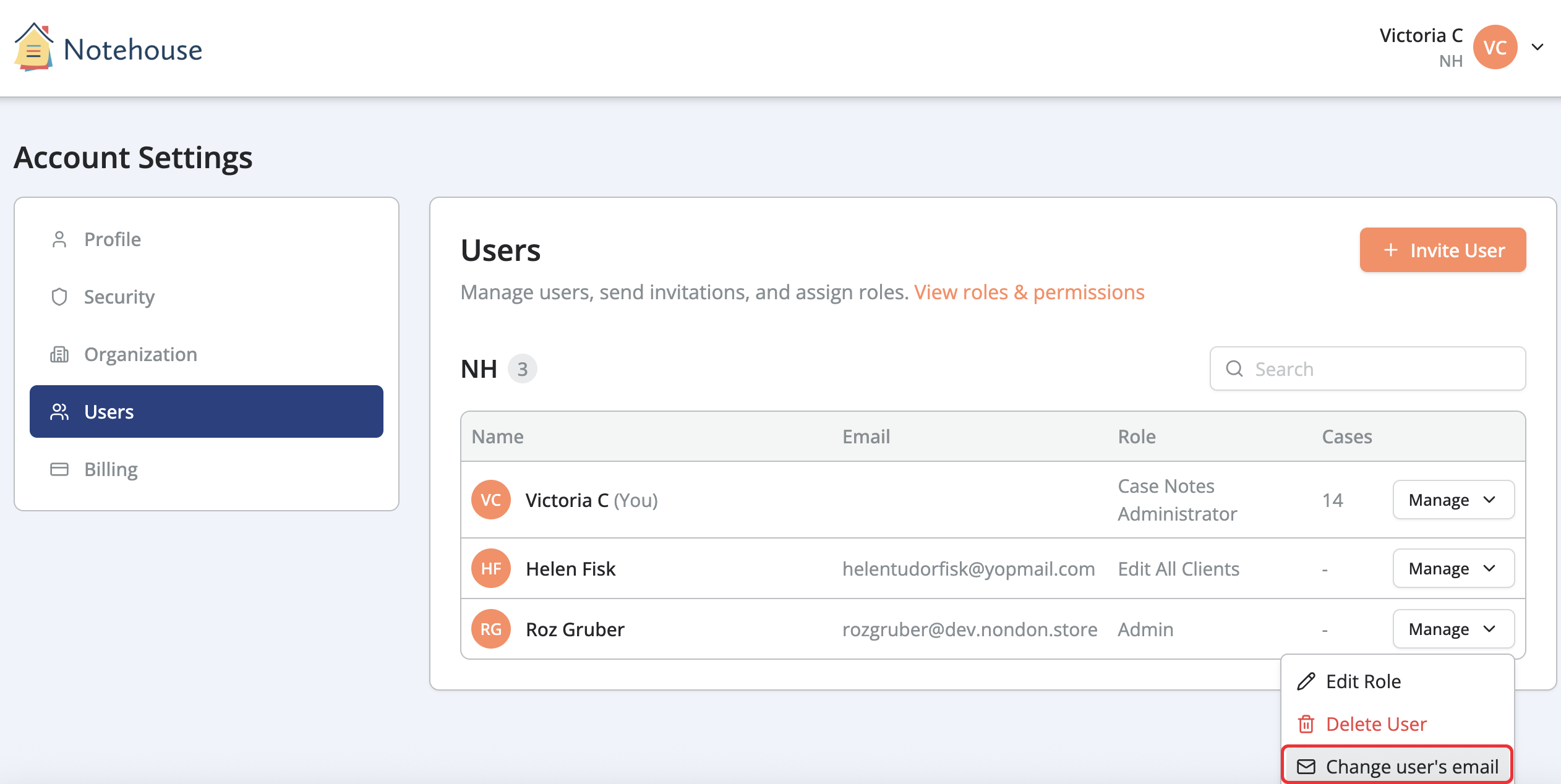
- Open the Users tab
- Find the user whose email address you want to change and select Manage
- Select Change user's email
- Enter the new email address
- Click Save
No confirmation code is needed when an email is changed by the Owner.
Frequently Asked Questions (FAQs)
I Mistyped the Email, What Now?
If you mistyped your email address, nothing changes until you confirm the new address with the verification code. Your old email still works and you're still signed in. You can start again with the correct address.
My Typo Is a Real Email Address That Belongs to Someone Else — Can They Access My Account?
No. Entering the code only completes the change from inside your own signed-in session. While the other person will receive the code, they do not have your login session so the code is a meaningless number to them. They can't redeem it against your account, and they can't start a change on your behalf either. The unconfirmed change simply doesn't happen.
What If My New Email Is Already Used By Someone Else?
If the address you entered already belongs to another account, a removed account, or a pending invitation somewhere in Notehouse, the change is refused before anything happens, with one clear message: “That email is already in use.” Please use a different address if you see this message.
I Entered the Wrong Code or My Code Expired, What Happens Now?
Codes are valid for 24 hours. If you entered the wrong code or your code expired, nothing changed and your old email is still active. You can start the email change again to get a new code.
I Started My Email Change But Closed the Tab or Changed My Mind, What Now?
If you began a change and did not confirm it, nothing happens. An unconfirmed email change simply never takes effect and your account and email remain unchanged.
Can I Still Use Notehouse While Waiting to Confirm My New Email?
Yes. You can stay signed in, keep working, and continue to sign in with your old email until the moment you confirm the new one with the code sent to you.
Will I Get Logged Out, or Do I Have to Set Up 2FA Again?
No. You will not be signed out, and your two-factor setup is not reset or disabled. Your authenticator app and SMS 2FA keep working exactly as before.
Does Capitalization Matter?
No. Notehouse treats the address the same regardless of capitalization.
When Can Support Help?
Support can assist if you experience a technical issue and cannot change the email address using the steps above.
Note: Support may require explicit permission or verification from you or your organization’s Owner before changing an email address on your behalf.
For questions, contact us at support@getnotehouse.com.