
How to Set Up Custom Fields
Every organization tracks different information about its clients. Custom Fields let you create additional fields that reflect the information your team needs to collect and organize. Notehouse now supports many Custom Fields, giving organizations greater flexibility to track the information that matters to their workflow.
Once configured, Custom Fields appear on client records so your team can enter and view this information alongside standard client details.
Table of Contents
- Custom Field Types
- How to Set Up Custom Fields
- Configuring and Using Custom Fields
- What to Know About Custom Fields
Custom Field Types
You can choose from several types of Custom Fields depending on the information your organization needs to track:
- Text — for written information.
- Number — for numerical information.
- Date — for dates.
- Dropdown — allows users to select one option from a list you create.
- Multi-select — allows users to select multiple options from a list you create.
For example, you might use a Number field for an invoice number, a Date field for enrollment, a Dropdown field for insurance provider, or a Multi-select field for languages spoken.
How to Set Up Custom Fields
Only the Owner can set up and manage custom fields.
- Go to Account Settings.
- Open the Organization tab.
- Locate the Custom Fields section.
- Select Add Field.
- Enter a label for your field.
- Select the type of Custom Field you want to create and then label it accordingly.
- Then select Add to save your new Custom Field.
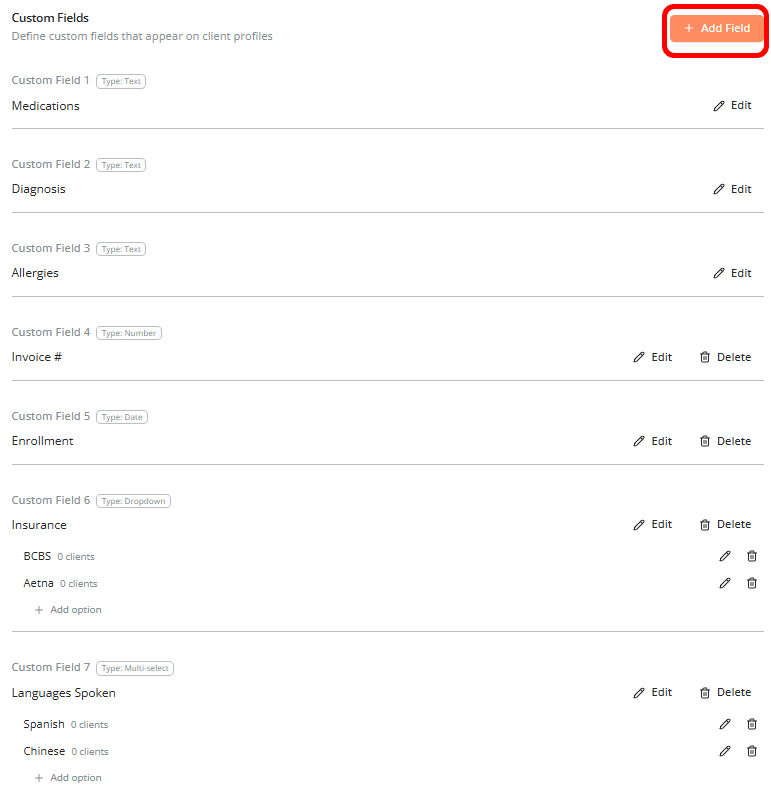
Note: The first 3 Custom Fields will always be Text only.
Adding Options to Dropdown and Multi-select Fields
Dropdown and Multi-select fields require you to create the options your team will choose from.
After creating the field:
- Locate the Custom Field in your Organization settings.
- Select Add option underneath the desired Custom Field.
- Enter the option you want to make available.
- Continue adding options as needed.
For example, an Insurance Dropdown field could include options such as BCBS and Aetna, while a Languages Spoken Multi-select field could include Spanish, Chinese, and other languages your organization tracks.
Configuring and Using Custom Fields
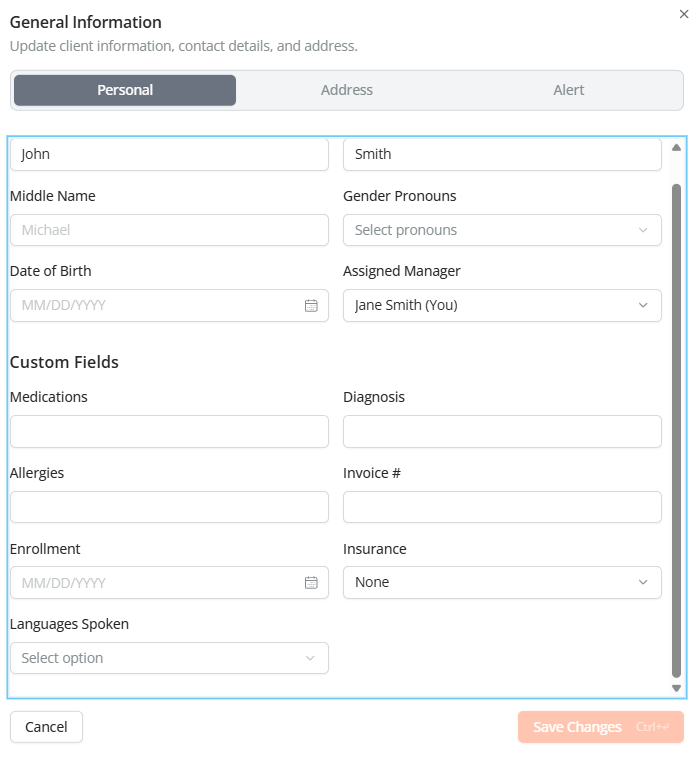
After setup, custom fields appear automatically on client detail pages. They also appear when you create a new client or edit existing client information under General Information.
To add or update custom field information, open a client record, enter the information in the designated fields, and save.
Tips
- Keep labels short and clear.
- Use language your team already uses.
- Be consistent, since custom fields are shared across the organization.
What to Know About Custom Fields
- Custom field labels can be updated at any time.
- Updating a label does not delete existing data.
- Changing a label can affect how existing data is interpreted, so communicate changes to your team.
For questions, contact us at support@getnotehouse.com.