
How to Remove a User
When someone leaves your organization, you can remove their access to Notehouse from Account Settings.
User access is revoked immediately upon removal, but all notes, attachments, and activity history they created remain intact.
Table of Contents
Before Removing a User
Before you remove someone, take a moment to plan for continuity:
- Decide who will take over any assigned clients
- Address any pending work or handoffs
- Remember that removal takes effect immediately
Note: Removing a user is permanent. If they need access again, they must be invited again.
Removing a User
Only Owners and Admins can remove users. Admins cannot remove the Owner.
- Go to Account Settings
- Open the Users tab
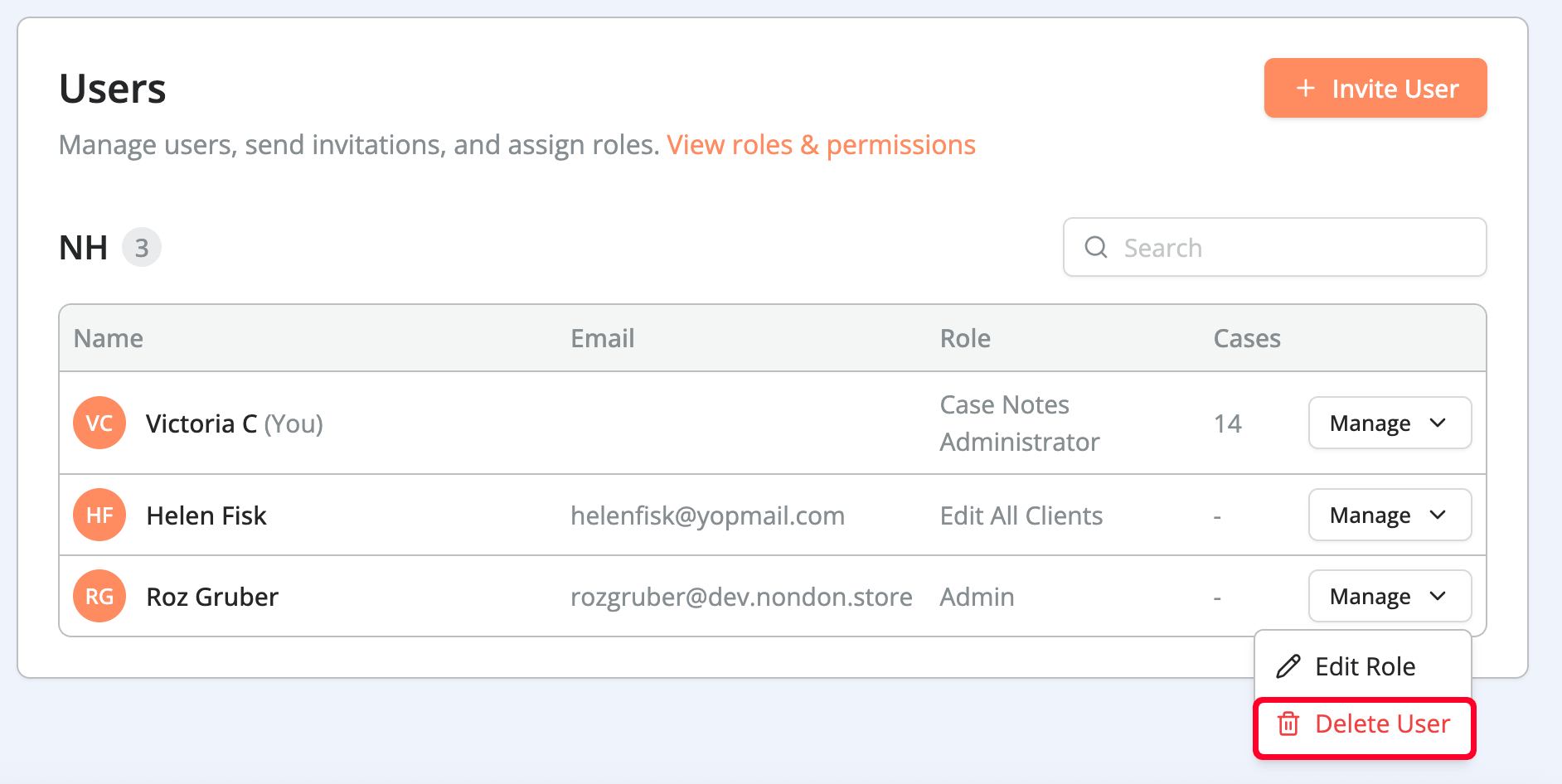
- Find the user you want to remove and click Manage
- In the dropdown menu, select Delete User
- Reassign clients if prompted
- Confirm the removal
Note: Removing a user will affect your billing plan.
Client Reassignment
If the user has assigned clients, you’ll be prompted to reassign them during removal. You can reassign all clients to one team member or manually reassign clients before removing the user.
Leaving clients unassigned is possible but not recommended.
What Happens After Removal?
Once removed, the user can no longer log in. Any active sessions are ended immediately, and their access to all organization data is revoked.
All data they contributed, such as notes, attachments, and activity history, remains intact. Client records remain unchanged.
Removal does not affect other users or organization settings.
For questions, contact us at support@getnotehouse.com.