
How to Change a User's Role
As responsibilities change, you may need to update a team member’s role.
Role changes take effect immediately, so users gain or lose access right away. Before making changes, especially when reducing access, consider notifying the affected user.
Table of Contents
- Who Can Change Roles
- Changing a Role
- Role Permissions Chart
- Role Change Considerations
- Important Note
Who Can Change Roles
Role changes require administrative access:
- Owner: Can change any user's role
- Admin: Can change most users' roles
Changing a Role
- Go to Account Settings
- Go to the Users tab
- Find the team member whose role you want to edit
- Select Manage
- Select Edit Role
- In the pop-up window, select the new role from the dropdown menu and confirm the change.
Role Permissions Chart
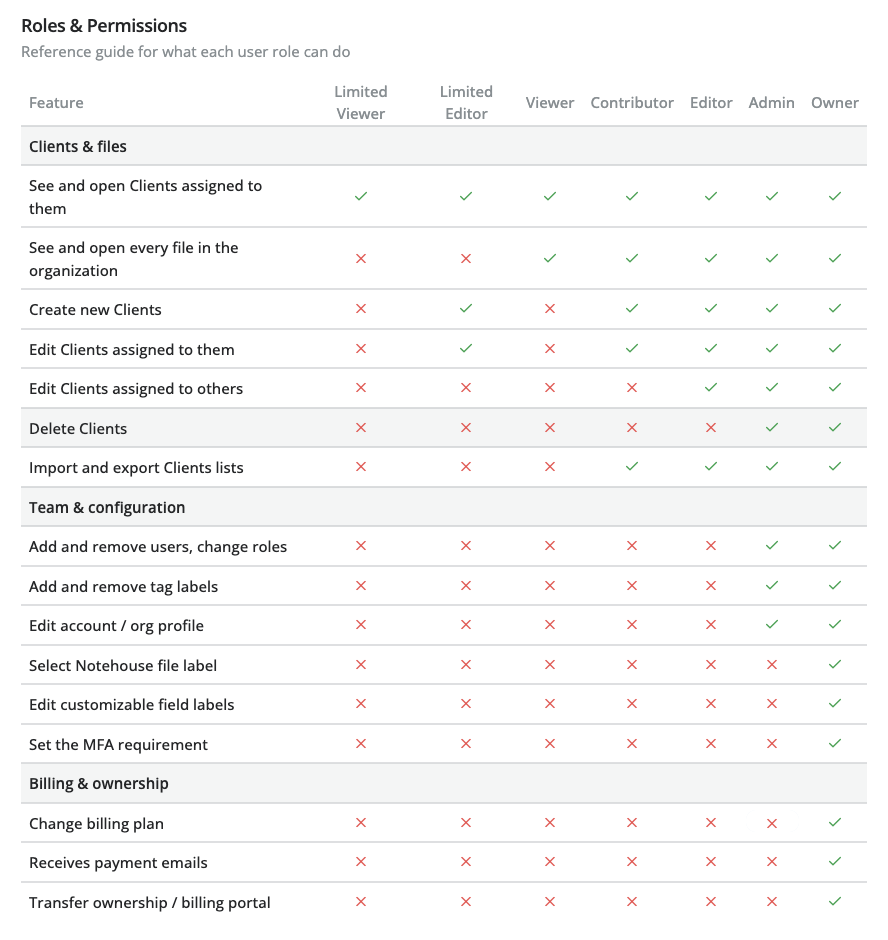
Role Change Considerations
Before changing a role, keep the following in mind:
- Permission increases take effect immediately, giving the user access to features and actions that were previously restricted.
- Permission decreases also apply immediately and may remove editing or administrative access, so it’s best to notify the user ahead of time.
- Client assignments are not affected by role changes. Users retain their assigned clients, even when roles are adjusted.
Important Note
Role changes and client assignments must be handled by your organization’s Administrator or Owner. Notehouse support cannot override roles or permissions for individual users without explicit permission from your organization’s Owner, except in cases involving technical issues or system errors.
For questions, contact us at support@getnotehouse.com.