
How to Save Searches
Search results remain available while you navigate, as long as you use the Back button to return to them. There’s no separate save button required, but the key is making sure you’re using the search tools correctly.
Table of Contents
How to Save Searches
- Type your search into the search bar
- Optionally, filter your results by:
- Client list (All Clients or My Clients)
- Tags
- Open the client record you want to view
- When finished, use the Back button to return to your search results
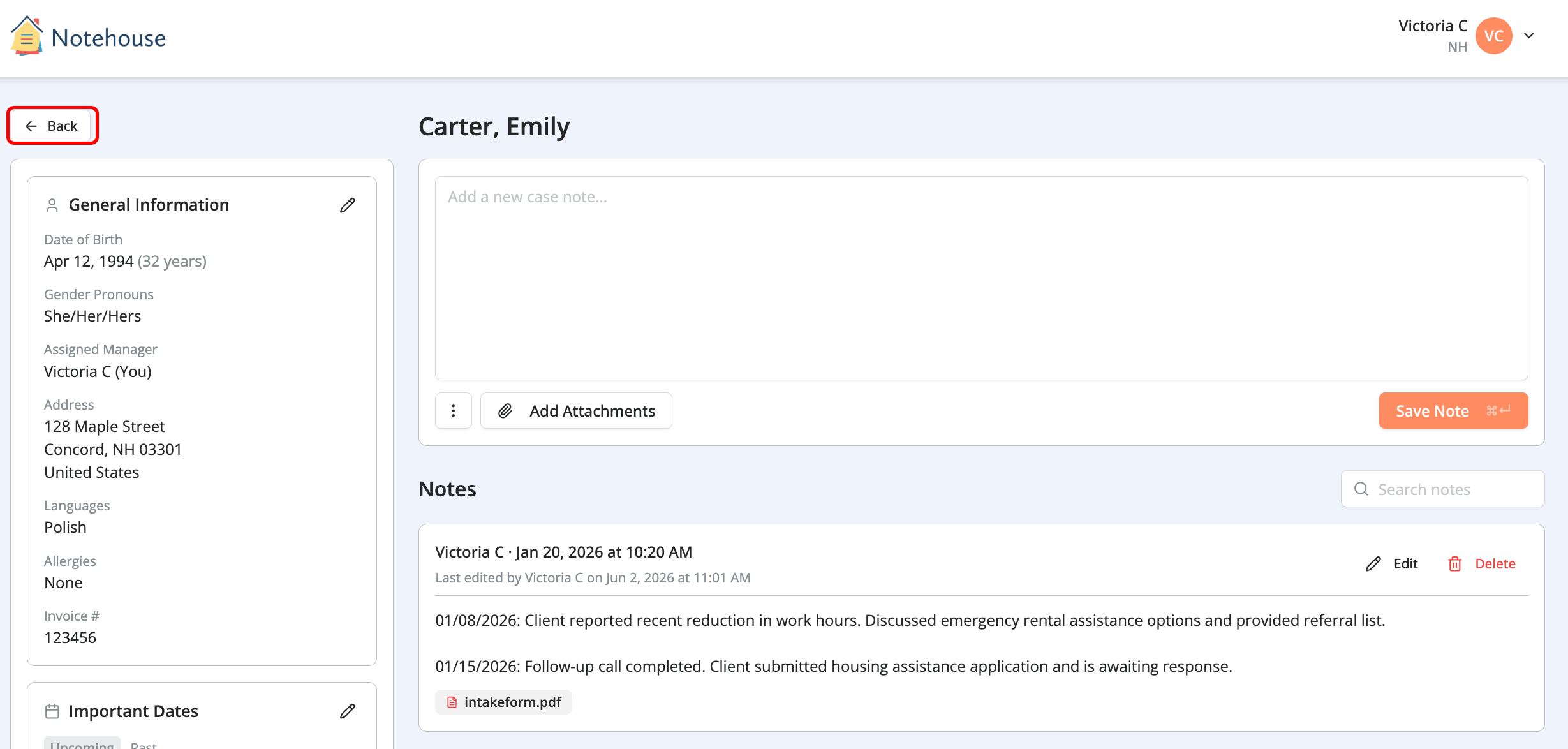
Important: Clicking the Notehouse logo in the top-left corner reloads the clients list and clears your current search results. To preserve your search, always use the Back button instead.
For questions, contact us at support@getnotehouse.com.